Introduction
The PeerPanda MCP Server allows AI assistants to securely access data from the PeerPanda Competitive Intelligence platform on behalf of a signed-in user.
PeerPanda MCP Url
Key Use Cases
- Preparing monthly or quarterly competitive reports
An AI assistant can summarize recent competitor activity tracked in PeerPanda and turn it into a structured report that follows your provided format. - Deep-diving on competitor activity
When an activity is spotted in PeerPanda, the assistant can investigate further by combining PeerPanda data with relevant information from the public web. - Answering competitive questions with internal context
The assistant can combine PeerPanda intelligence with your internal documents (for example, strategy notes or past analyses) to give more complete, context-aware answers.
How AI assistants can use PeerPanda
The MCP server works with multiple AI assistants including Claude (Desktop and Web), ChatGPT (Plus and Pro subscriptions), Mistral Le Chat, Dust.tt, and Microsoft Copilot Studio.
It allows the AI assistant to access PeerPanda data as the signed-in user, respecting that user’s permissions.
Important notes:
- The set of tools available through MCP may change over time, and the MCP server is meant for interactive AI usage only.
- It does not replace the PeerPanda API and should not be used as a programmatic or backend integration.
How Authentication works
- When a user connects, they are asked to sign in to their PeerPanda account.
- Once signed in, a secure connection is created between the AI tool and PeerPanda.
- Access is user-scoped:
- One PeerPanda user = one authenticated connection
- One PeerPanda user = one authenticated connection
General Instructions to setup PeerPanda MCP
- First, make sure that you are logged-in to your PeerPanda Account
- Add a new MCP server in your AI Assistant of choice.
- Enter the server URL: https://mcp.getpeerpanda.com/mcp
- Follow the on-screen sign-in prompts to authorize the PeerPanda MCP access to your competitor data
You might need to select OAUTH autoconfiguration or a similar setting.
There is no need to specify a Client ID nor a Client Secret
ChatGPT Instructions
For adding PeerPanda MCP, you need to have an active ChatGPT Plus, or ChatGPT Pro subscription.
- First, make sure that you are logged-in to your PeerPanda Account
- In ChatGPT, click your name in the bottom left-hand corner of the screen
- Select Settings in the drop down list
- Open the Apps panel, then in the Advanced Settings, click Create App
- Fill the form with the example below
- Leave OAuth Client ID and OAuth Client Secret blank
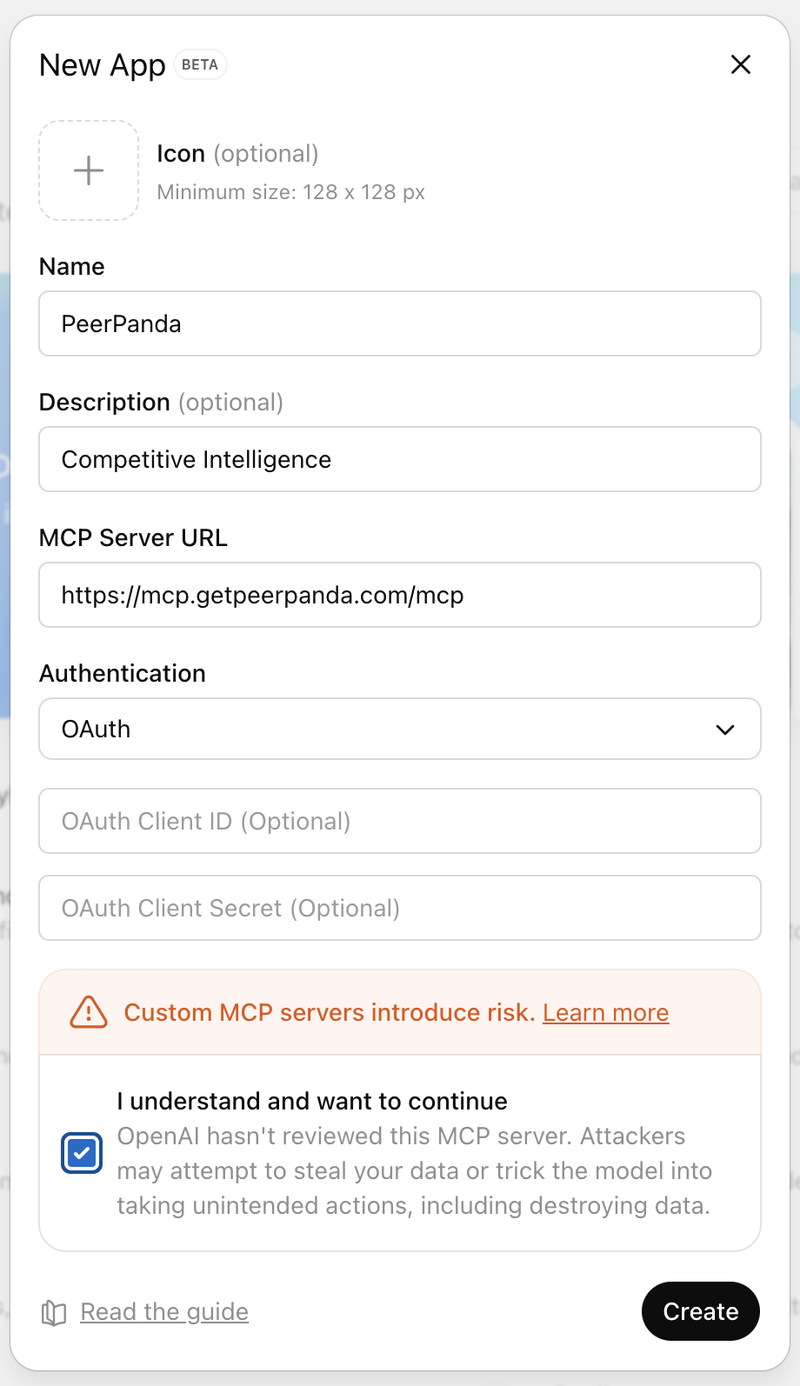
Adding PeerPanda MCP in ChatGPT
Dust.tt Instructions
For adding PeerPanda MCP, you need to have an active Dust subscription, and you need to be an administrator of your workspace.
You might find the Dust documentation useful.
- First, make sure that you are logged-in to your PeerPanda Account
- In Dust, click Spaces in the top left-hand corner of the screen
- In the Administration section click Tools.
- In the right part of the screen, click + Add Tools, then + Add MCP Server
- Paste the PeerPanda MCP URL : https://mcp.getpeerpanda.com/mcp
- Keep Authentication to Automatic, and Custom Headers Disabled
- Click Save
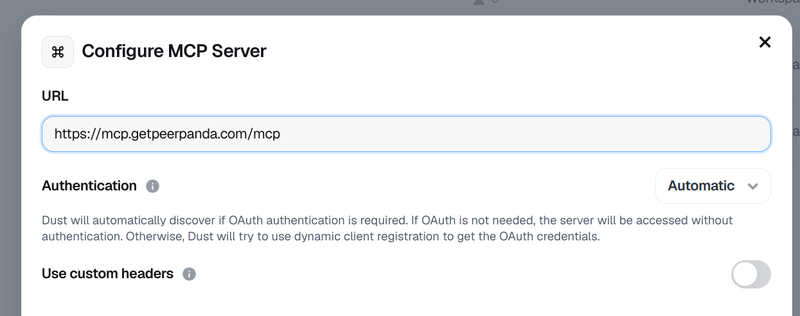
Adding PeerPanda MCP in Dust
- If people who will be using PeerPanda MCP in Dust have PeerPanda accounts, then select Personal accounts
- Otherwise, Shared accounts will enable Dust users to access PeerPanda information through your own account
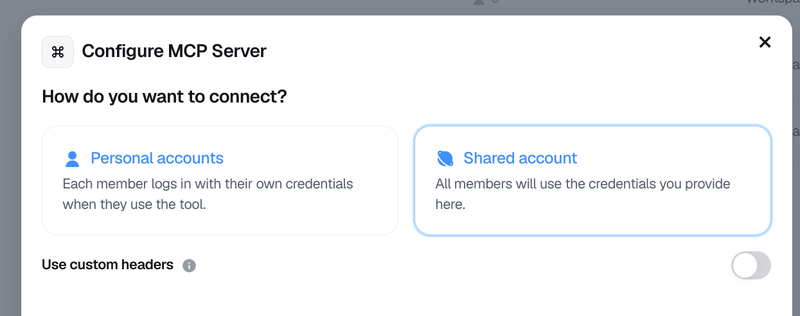
Select Personal or Shared Account
Finally, follow the prompts to finish connecting your PeerPanda account.
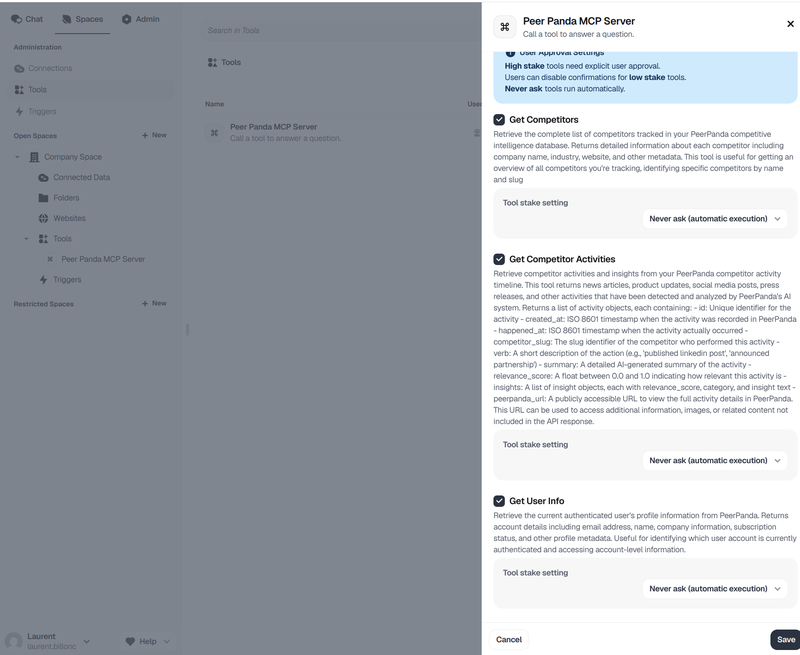
Dust PeerPanda MCP Tool Configuration
You may finish the setup by setting all PeerPanda tools as Never Ask.
PeerPanda tools cannot delete or modify data, so it's safe to do so, and will make the experience smoother for your users.
Microsoft Copilot Instructions
Use PeerPanda’s MCP server to let Microsoft Copilot agents search competitors and retrieve recent competitive activity directly from your PeerPanda workspace.
This integration is read-only and can use per-user permissions: Copilot can only access data the signed-in user is allowed to see.
You might find the Microsoft Copilot Studio Documentation useful
Add PeerPanda as an MCP tool in Copilot Studio
- Open Microsoft Copilot Studio
- Open your agent
- Go to Tools
- Select Add a tool
- Choose New tool
- Select Model Context Protocol (MCP)
MCP server configuration
Fill in the MCP server fields as follows:
Server name: PeerPanda Competitive Intelligence
Server description: Search competitors and retrieve recent competitor activity tracked in PeerPanda.”
Server URL: https://mcp.getpeerpanda.com/mcp
Authentication setup
When prompted for authentication:
- Choose OAuth 2.0
- Select Dynamic discovery
- Do not enter a Client ID or Client Secret
- Continue and complete the sign-in flow when prompted
You will be asked to authenticate with PeerPanda during setup. This links the MCP connection to your user account and permissions.
Save and test
Save the MCP tool and open the Test chat for your agent
Try a prompt like: "List my PeerPanda Competitors"
If configured correctly, Copilot will automatically call PeerPanda’s MCP tools when relevant.
Mistral Le Chat
For adding PeerPanda MCP, you need an active Le Chat Free, Le Chat Pro, or Le Chat Student account.
This feature requires Admin privileges on Le Chat, which all account owners have by default.
This integration is read-only and can use per-user permissions: Le can only access data the signed-in user is allowed to see.
You might find the Le Chat Custom Connector documentation useful
Steps to Configure PeerPanda in Mistral Le Chat
First, make sure that you are logged in to your PeerPanda Account.
- In Le Chat, click the toggle panel button to reveal the side panel if it's not already visible.
- Expand the Intelligence menu and click Connectors.
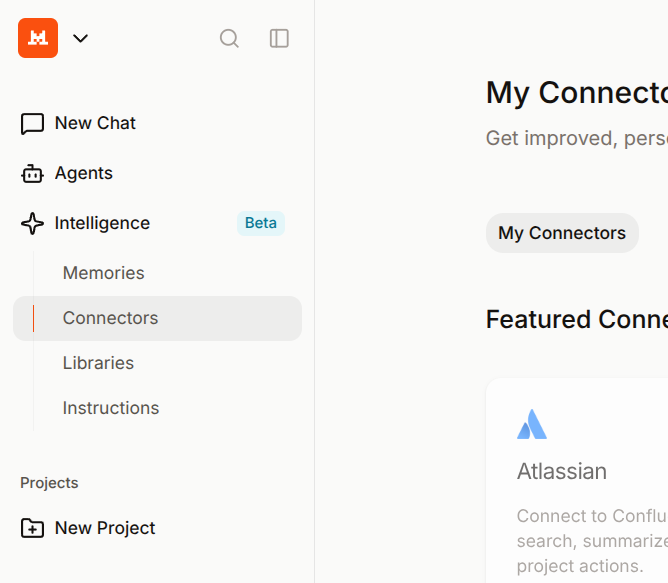
Connectors are available in the left panel
Click the + Add Connector button on the right side of the page.
This opens the MCP Connectors directory.
At the top of the MCP Connectors directory pop-up, click the Custom MCP Connector tab to switch to the Custom MCP Connector creation form.
MCP server configuration
Fill in the MCP server fields as follows:
Server name: PeerPanda Competitive Intelligence
Server description: Search competitors and retrieve recent competitor activity tracked in PeerPanda.”
Server URL: https://mcp.getpeerpanda.com/mcp
Authentication method: OAuth 2.1
Leave the Client ID and Client Secret fields blank if they appear.
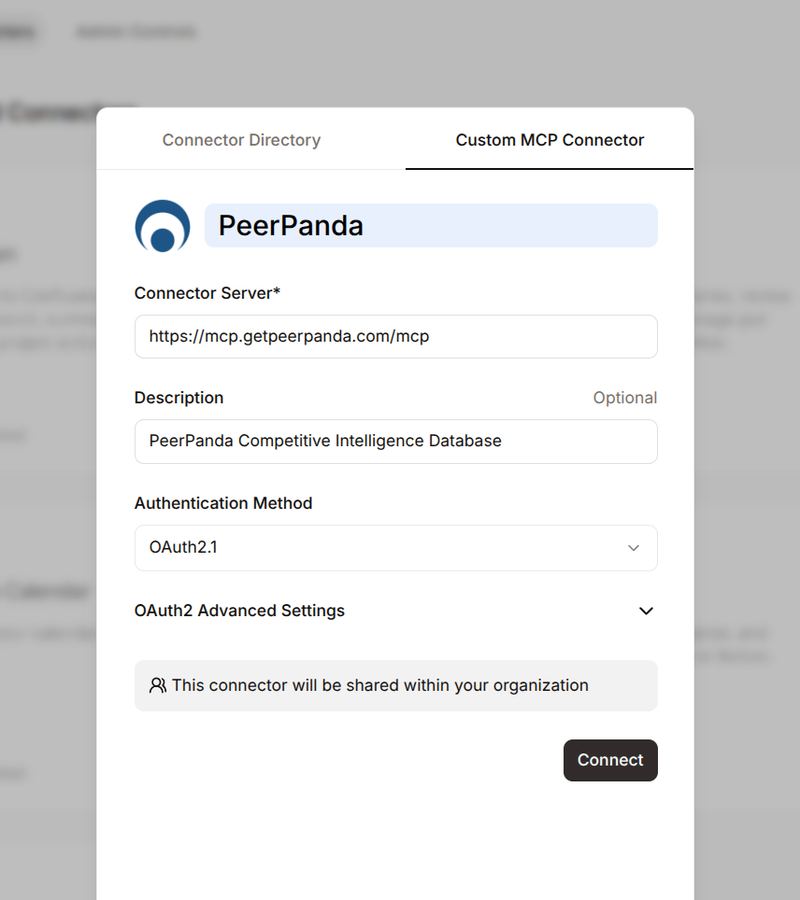
Setting up PeerPanda MCP in Le Chat
Click the Connect button and follow the on-screen prompts to authorize PeerPanda access to your account through the OAuth authentication flow.
Setting Function Permissions (Recommended)
After successfully connecting PeerPanda, you can configure function-level permissions to avoid repetitive permission prompts.
- Click your PeerPanda Connector card to open its details.
- Go to the Functions tab.
- For each function listed, toggle the Always Allow setting to enabled.
Since PeerPanda tools are read-only and cannot modify or delete data, it is safe to enable Always Allow for all PeerPanda functions.
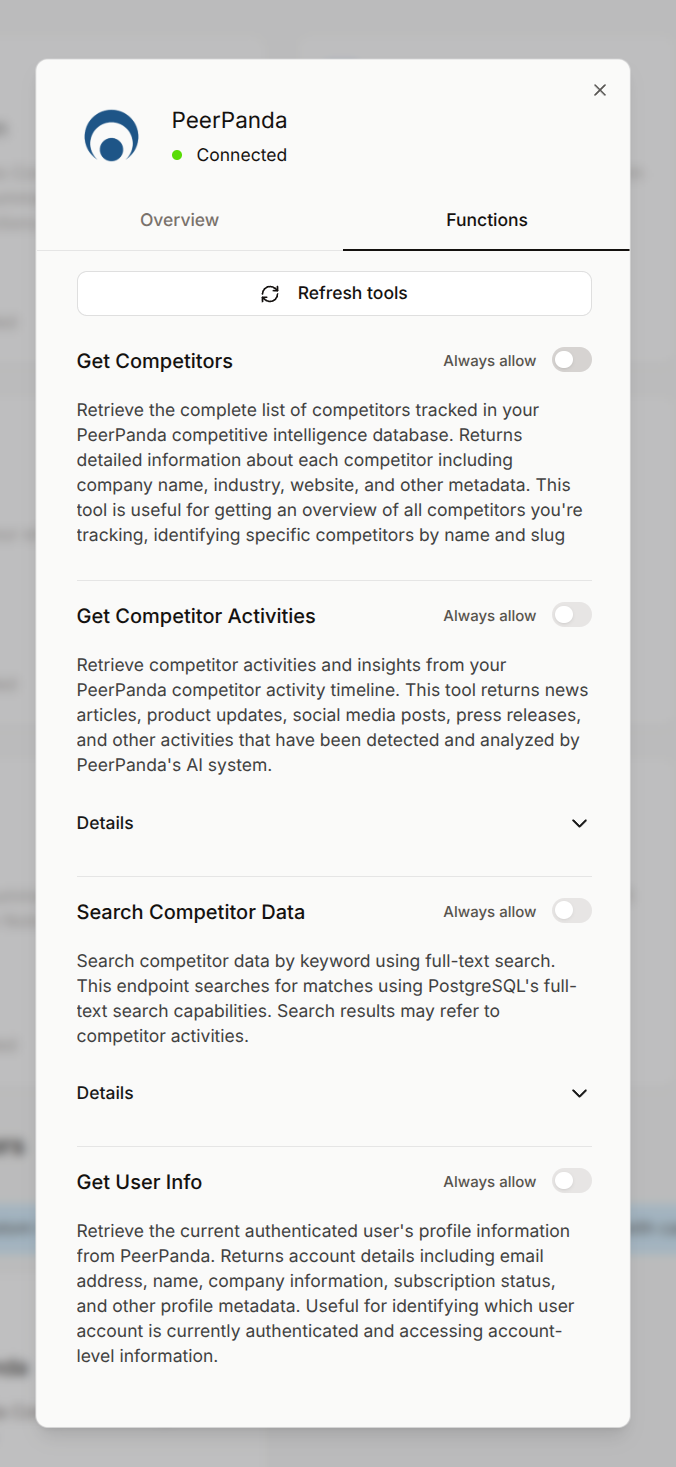
Setting up PeerPanda tools permissions in Le Chat
Save and test
Once you've configured PeerPanda, you can test the connection to make sure everything is working correctly.
Open a new conversation in Le Chat and try a simple prompt such as "list my PeerPanda competitors"
If configured correctly, Le Chat will automatically call PeerPanda's MCP tools and return information from your PeerPanda workspace.
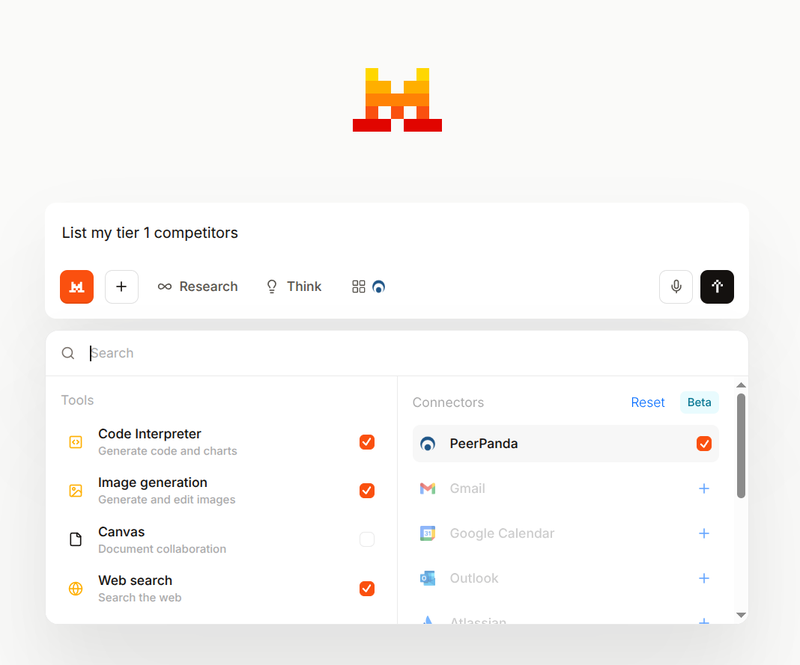
Enable the PeerPanda tool when talking to Le Chat
Some Prompts you can try
Competitive Agent System Prompt
Context :
You are a competitive intelligence agent working for our Product Team at (Your Company).
Instructions :
- To get info on competitor activities, get the competitor list from PeerPanda to get the competitor slug, then request the competitor activities.
- You can also search all PeerPanda data with a keyword query.
- When giving an answer mentioning competitor activities, make sure the name of the activity is a clickable link leading to the activity page on PeerPanda.
Task :
- Answer the user's query using data from PeerPanda
- When applicable, you should enrich the information using data from browsing the web